Table of Contents (15 sections)
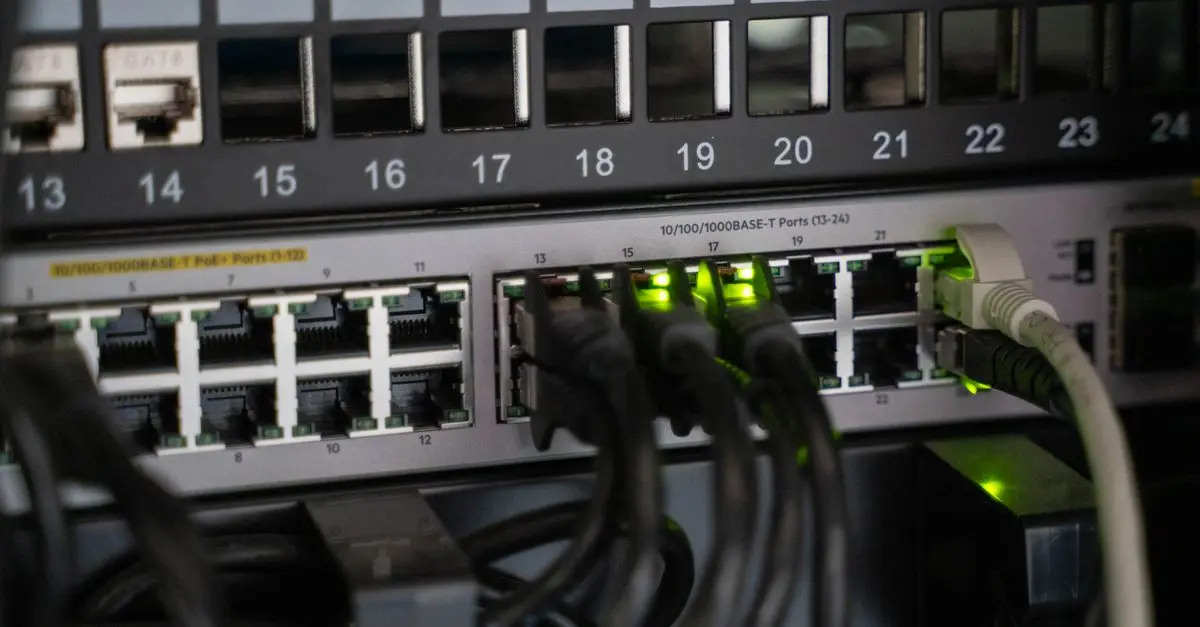
Setting up a new smart home network can transform your living environment, making it more convenient, efficient, and secure. This guide will walk you through the process, step by step, ensuring a seamless integration of all your smart devices.
Understanding a Smart Home Network
A smart home network setup involves connecting various devices like thermostats, lighting, security cameras, and more to your internet network. This allows you to control these devices remotely and automate tasks for a smoother lifestyle. According to Statista, the global smart home market is expected to exceed $200 billion by 2025, highlighting its influence and growth. Source: Statista
Step 1: Assess Your Network Needs
Begin by evaluating what devices you plan to incorporate. Consider your current internet speed, bandwidth requirements, and coverage area. Use tools like speedtest.net to check your internet speed. Ensuring you have adequate speed (at least 25 Mbps for a household with multiple devices) is crucial. According to UFC-Que Choisir, having a reliable home network foundation can prevent bottlenecks.
Step 2: Selecting the Right Router
Choose a router that supports the latest Wi-Fi standards, such as Wi-Fi 6, for better coverage and stability. Look for features like dual-band frequency and a high number of antennas for improved range. Popular brands include Netgear, TP-Link, and ASUS, offering various models based on your needs. Netgear routers are praised for their robust settings and security options. Source: Les Numériques
Step 3: Securing Your Network
Security is paramount when setting up a smart home. Change the default router password, enable WPA3 encryption, and consider setting up a guest network for visitors. According to Consumer Reports, using a Virtual Private Network (VPN) can add an additional layer of security to protect your sensitive data. Source: Consumer Reports
📺 Ressource Vidéo
📺 For more in-depth guidance: Smart Home Network Setup Tutorial, a complete analysis of setting up smart home networks. Search on YouTube: "smart home network setup 2026 tutorial".
Step 4: Integrating Smart Devices
Once your network is secured, start adding devices like smart lights, speakers, and cameras. Use apps for brands like Amazon Alexa or Google Home to streamline connectivity. Ensure that device firmware is updated regularly to close any potential security gaps. Failure to update can leave your network vulnerable to security breaches.
Step 5: Optimize Network Performance
Placement is crucial for network optimization. Position your router centrally to minimize dead zones, and consider using range extenders if needed. Enable Quality of Service (QoS) settings to prioritize traffic for critical devices. UFC-Que Choisir highlights that optimal router placement can enhance network reliability significantly. [Source: UFC-Que Choisir]
Creating a Seamless Experience
Differentiate your network experience by enabling automation. Use IFTTT (If This Then That) to create automation recipes that improve daily life, such as dimming lights automatically at sunset.
Comparison Table: Key Router Features
| Feature | Wi-Fi 5 | Wi-Fi 6 | Verdict |
|---|---|---|---|
| Speed | Up to 3.5 Gbps | Up to 10 Gbps | Wi-Fi 6 |
| Latency | Higher | Lower | Wi-Fi 6 |
| Device Handling | Limited | Higher Capacity | Wi-Fi 6 |
| Security | WPA2 | WPA3 | Wi-Fi 6 |
🧠 Quiz Quick: What is the recommended internet speed for a smart home with multiple devices?
- A) 10 Mbps
- B) 25 Mbps
- C) 50 Mbps
Answer: B — 25 Mbps ensures seamless connectivity for multiple devices.
Checklist Before Setup
- [ ] Evaluate your internet speed.
- [ ] Choose a suitable router.
- [ ] Secure your network with updated encryption.
- [ ] Connect smart devices post firmware update.
- [ ] Optimize router placement for coverage.
Glossary
| Term | Definition |
|---|---|
| Wi-Fi 6 | The latest standard in wireless networking |
| WPA3 | Advanced security protocol for Wi-Fi networks |
| QoS | Quality of Service; prioritizes internet traffic |
- What is a smart home network?
A network connecting devices like thermostats and lights to the internet, enabling remote control.
- How do I secure my smart home devices?
Use strong passwords, enable encryption, and regularly update firmware.
- Why is Wi-Fi 6 better than Wi-Fi 5?
Wi-Fi 6 offers faster speeds, lower latency, and better support for multiple devices.
- What is a VPN and should I use one?
A VPN encrypts your internet connection, offering additional privacy and security.
Conclusion
Setting up a smart home network is an investment in convenience and security. Following these steps will ensure a robust and efficient setup, providing you and your family with peace of mind and an enhanced living experience.